
How to create a link
You can create and share links to your school's books, collections, and more in Sora. Links will open right to that page in a browser or in the Sora app (if installed).
If someone follows a link but isn't signed into Sora, they'll be prompted to sign in before the page displays.
Create a link in your browser
- Go to soraapp.com and sign in.
- Go to the page you want to share. You can share:
- Your school's sign-in page
- A book's details page
- A collection
- Search results (for specific authors, series, etc.)
- The Home, Explore, Shelf, or Me tab.
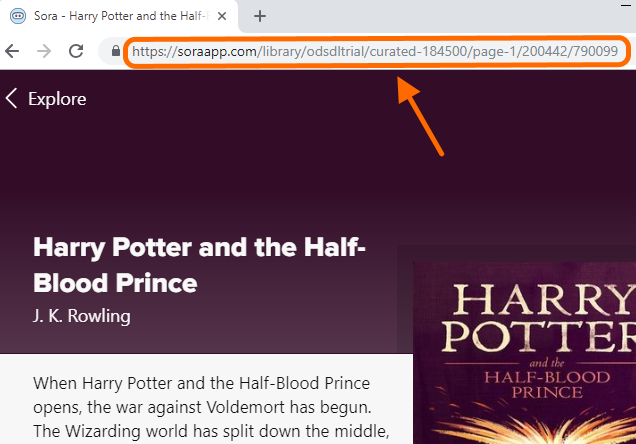
- Copy the URL. Then, paste it wherever you'd like to share it.
Create a link with a title ID
If you know your school's setup code and the title ID, you can link directly to the title using this template:
https://soraapp.com/library/SetupCode/TitleID
Create a link to your school's sign-in page
If you know your school's setup code, you can link directly to your sign-in page using this template:
https://soraapp.com/library/SetupCode
If your school is part of a district, shared collection, or other system that requires students to select a specific school or location, you can link to your school's sign-in page to bypass the selection screen.
To do this, navigate to your system's Sora sign-in page in a browser, select your school, then copy the URL from that page. You can then share that URL, which will take students right to your specific school's sign-in.