
How to share a list
Once you create a list, you can share it with others at your school. No one can edit your shared list, and they'll see if you add or remove titles from it.
Anyone you've shared your list with can copy it, but their copy doesn't change if you edit the original list.
Note: A list recipient might not see all titles on a shared list. For example, some titles may be unavailable for their account type or may only be available from public libraries they haven't added to Sora.
To share a list:
- Go to
 > Lists.
 - Select a list.
- Click or tap Share, then Start sharing.
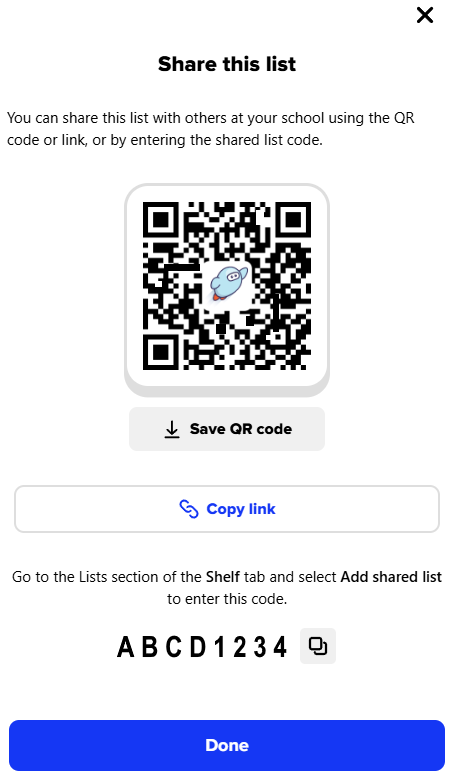
You'll see three ways to share the list:
- QR code
- List link
- List code
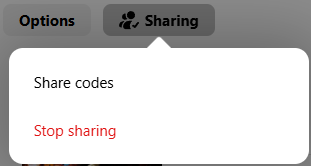
To find the share options later, go to the shared list, click or tap Sharing, then Share codes.
You'll see how many people you're sharing the list with beneath the list name.
